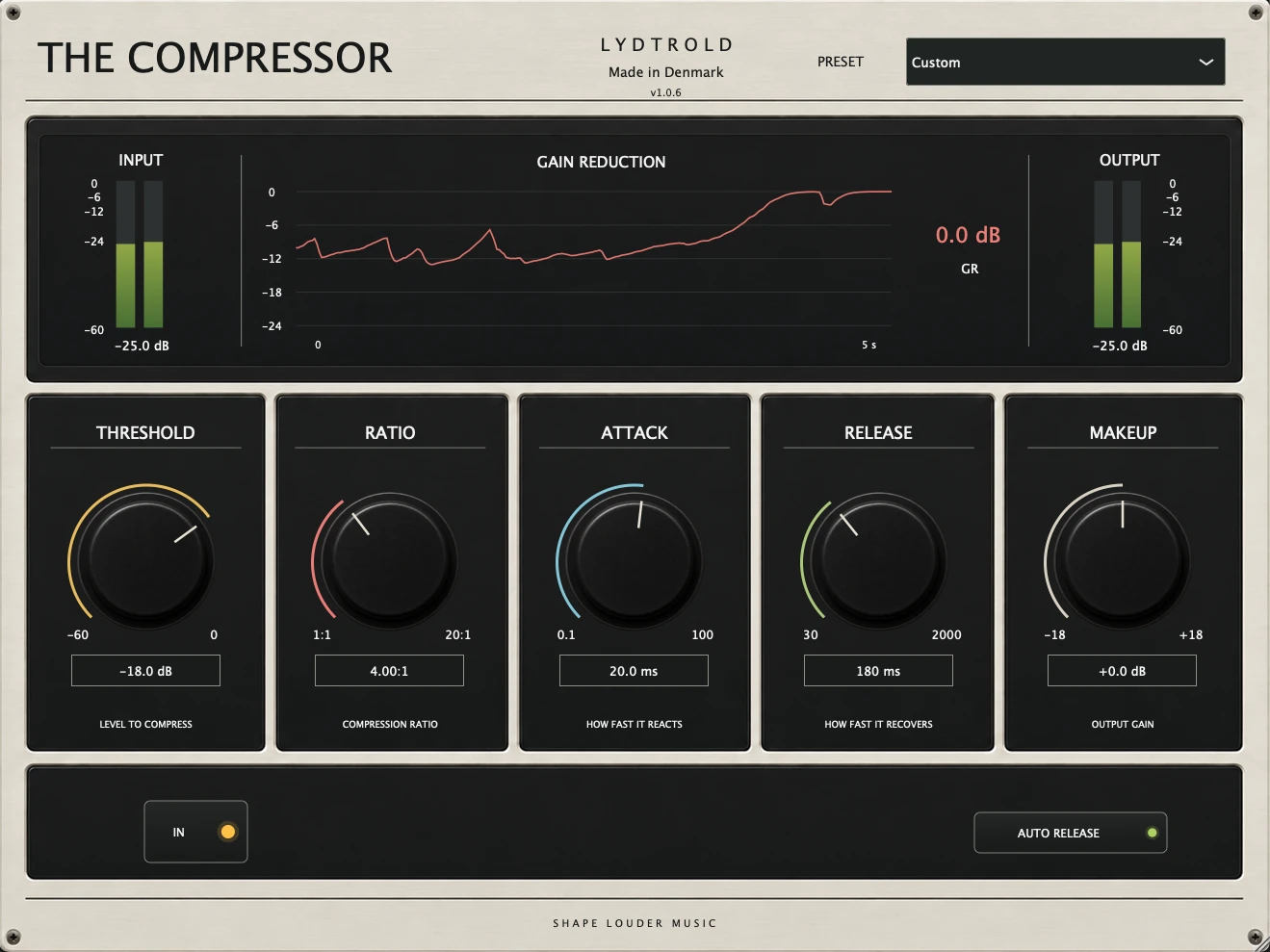
Start with your DAW and platform, choose the matching edition, then install through the public Lydtrold Installer.
1. Choose the right format
Check your DAW against the Formats page before buying. Pro Tools uses AAX; other compatible hosts may use AU or VST3. AU is Mac-only. AAX DSP requires a compatible Pro Tools HDX setup.
Individual product pages show available editions. Individual plug-in licences cover Mac and Windows; for a Complete Bundle, choose Mac or Windows at checkout.
2. Claim or buy your plugins
You can start with the Free Collection, buy an individual plug-in, or purchase a Complete Bundle. Paid licences are perpetual purchases with no monthly renewal. Compare the current contents and prices on the relevant page.
Keep your receipt and personal licence key. The Free Collection has a free checkout and includes joining the mailing list; you can unsubscribe from marketing emails while keeping the collection licence.
3. Install with Lydtrold Installer
Close your DAW before installing. Download the public installer for your platform from the Installer page. Mac has Native and DSP options; the Windows application lets you choose the applicable products.
- Open the installer and sign in with the email used for your purchase to sync products.
- If prompted for a licence, use the personal key from your purchase. Select only the plug-ins and formats you need.
- Install the selection, then reopen your DAW and let it scan the plug-ins.
4. Make a simple first comparison
Insert the plug-in on a track with audio and start from a neutral setting. Change one control at a time. Match the output level when comparing processed and bypassed sound so that extra loudness does not decide for you.
If a plug-in is missing, check the installed format, the host’s plug-in scan and the product’s compatibility information. For help, include the plug-in version, operating system, DAW and format in your message.